Training · Riders
Ride with Atlas: from download to boarding
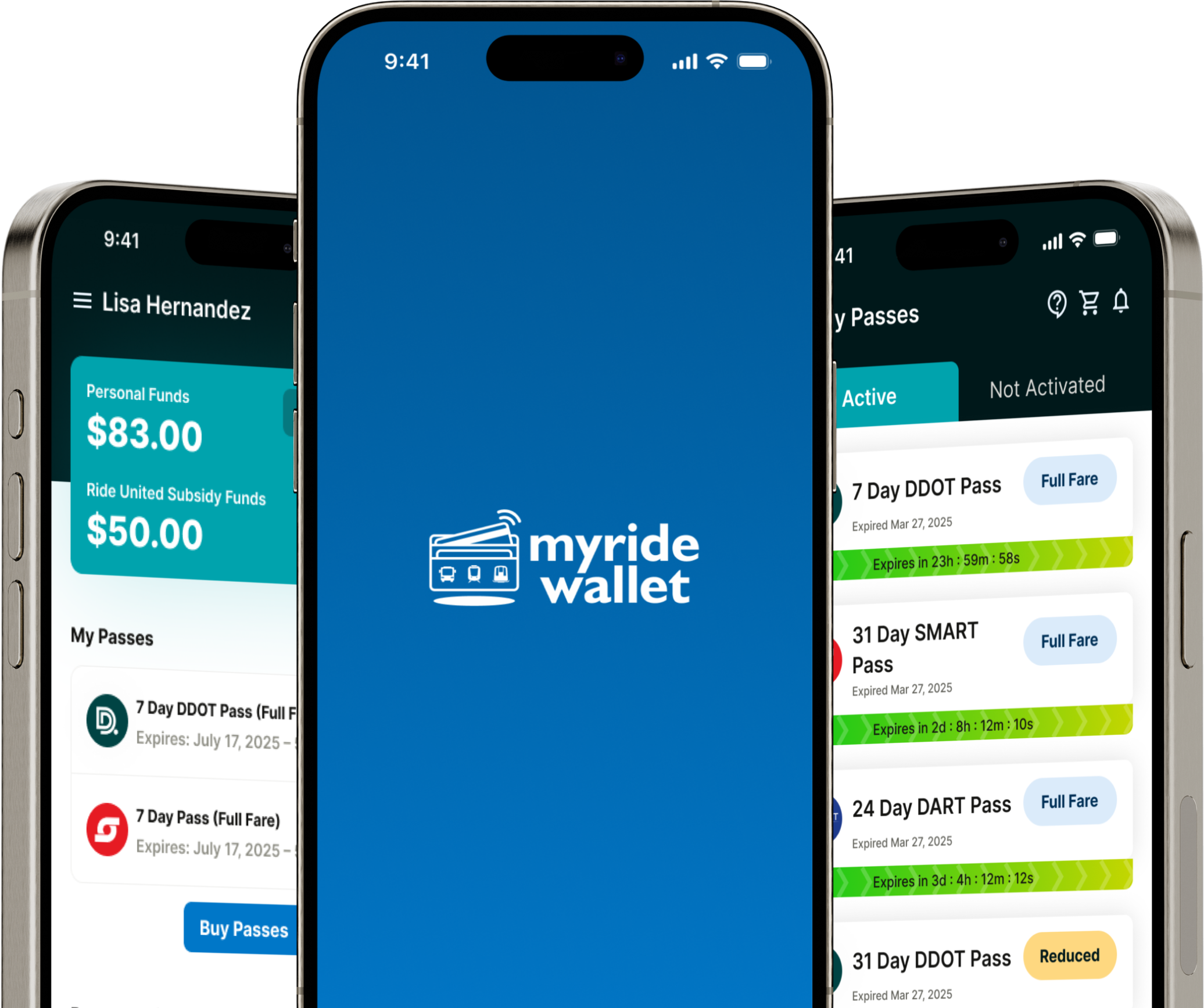
Download the Bhadala Atlas app, sign up, and start buying passes for seamless transit across the Detroit metro area. Here's everything you need to get moving.
Download the Bhadala Atlas app and create your account
Bhadala Atlas is free to download from the App Store and Google Play. Sign up with your name, email and phone number, verify your account, and you're ready to ride.
- Download Bhadala Atlas from the App Store (iOS) or Google Play (Android).
- Register with your name, email and phone number, then enter the verification code we send you.
- Add funds to your Personal Wallet. If an employer, city or benefit provider pays toward your rides, join them next.
Join your benefit with a code
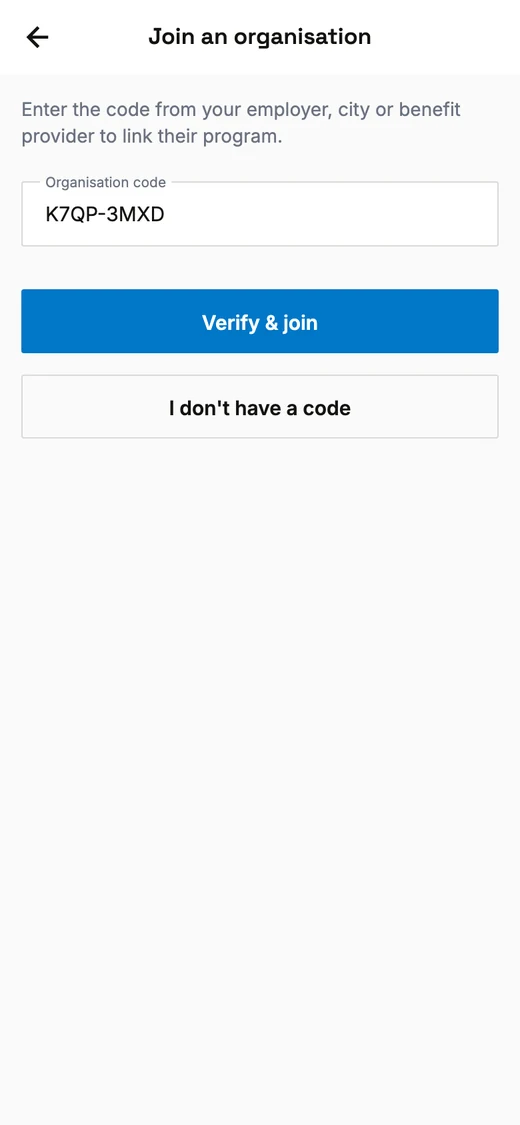
If your employer, city or a benefit provider pays toward your rides, they give you a join code on their poster or in a welcome email. Codes look like XXXX-XXXX, or a word they chose, such as RIDEWAYNE.
- In the app: go to Benefits, tap Join an organisation, enter your Organisation code and tap Verify & join.
- No code? Tap I don't have a code to find your organisation by name.
- On the web: sign in at staging.bhadala.us/benefits/join, enter it under Join code, or search for your organisation by name. Capitals and dashes don't matter.
What happens next
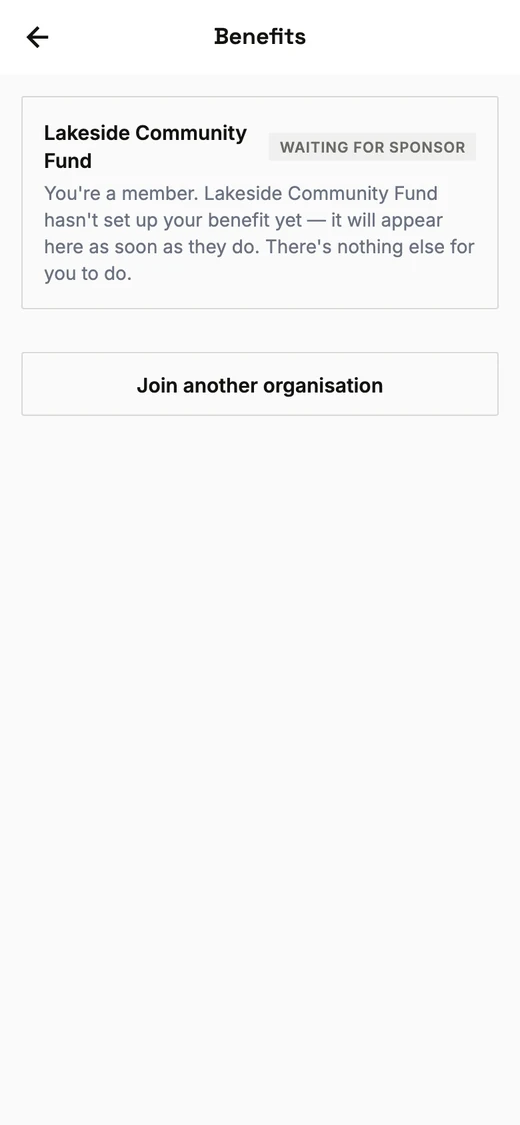
Joining doesn't put money in your wallet straight away. You're a member as soon as you join, and your sponsor is told. Then they set up your benefit.
Until they do, Benefits shows your organisation marked Waiting for sponsor. That means it worked, and there's nothing else for you to do. When your sponsor sets up your benefit, it appears in Benefits and you can spend it on passes.
If something goes wrong
That join code is not valid.
- Check the code letter by letter. A code in the XXXX-XXXX style never uses 0, O, 1, I or L. If it still fails, ask your sponsor for the code again.
Organisation isn't accepting new members right now.
- Your organisation has paused sign-ups. Ask them when they'll open again.
Organisation decides who joins — you can't add yourself. Ask them to invite you.
- This organisation adds its members itself. Ask them to invite you.
Organisation needs a join code.
- You picked your organisation from the list, but it only takes members who have its code. Ask for the code on their poster or welcome email.
Buy a pass in a few taps
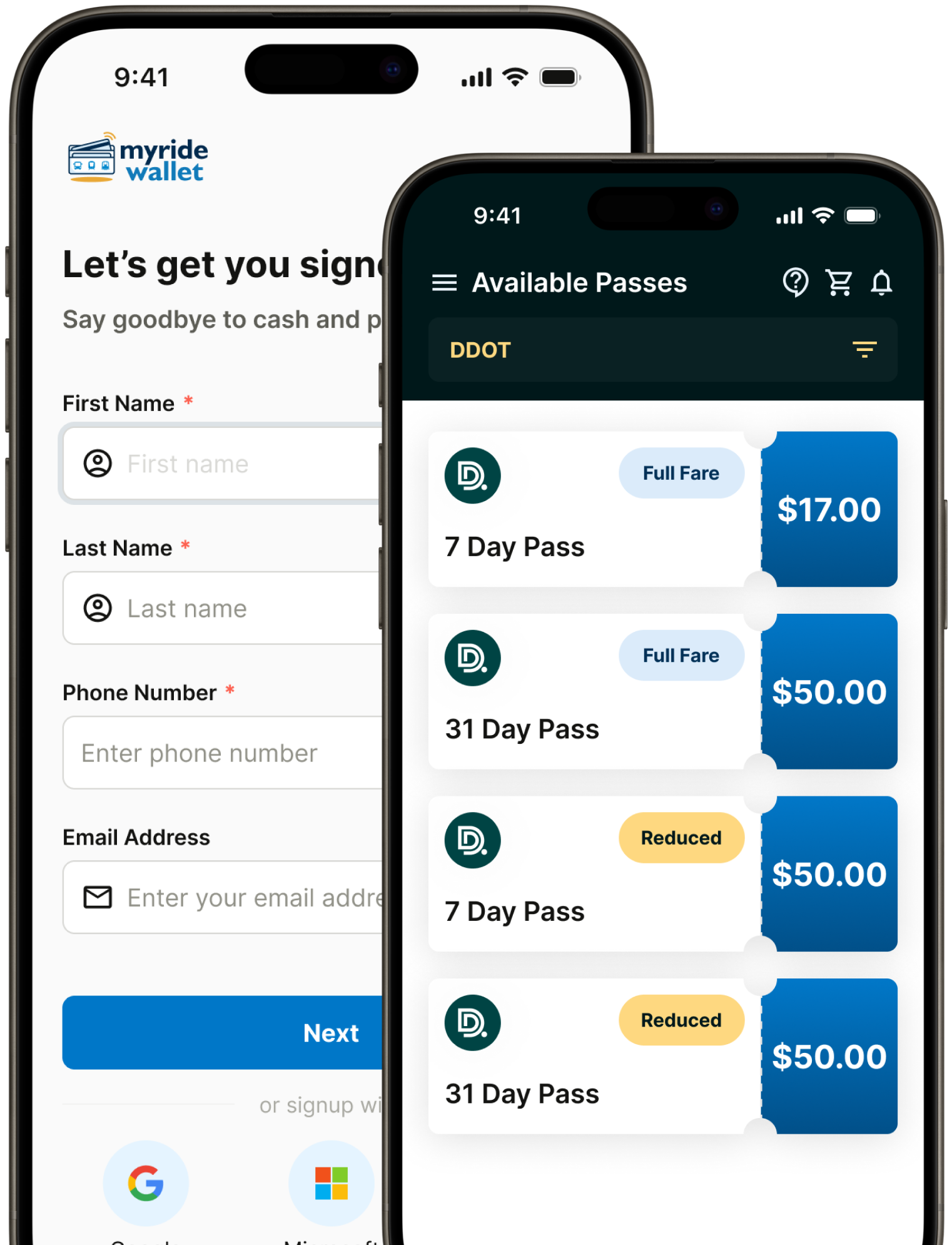
Once you're signed in, buying a pass takes just a few taps. Choose your agency, pick the fare that fits your trip, and pay from your wallet.
- Pick an agency — DDOT, SMART or Regional service.
- Choose your fare — from 4-hour and 24-hour passes to weekly and monthly, plus reduced fares if you qualify.
- Pay in seconds from your Personal Wallet, or from a benefit your sponsor has set up.
Digital passes that work offline
Your purchased passes live in your wallet and are ready whenever you are. Activate a pass just before you board — once activated, it works even without a signal.
- Store multiple passes and see which are active and which are waiting to be used.
- Activate when you're ready to ride — the clock starts when you do, and it can't be paused.
- No signal needed — active passes keep working offline once downloaded.
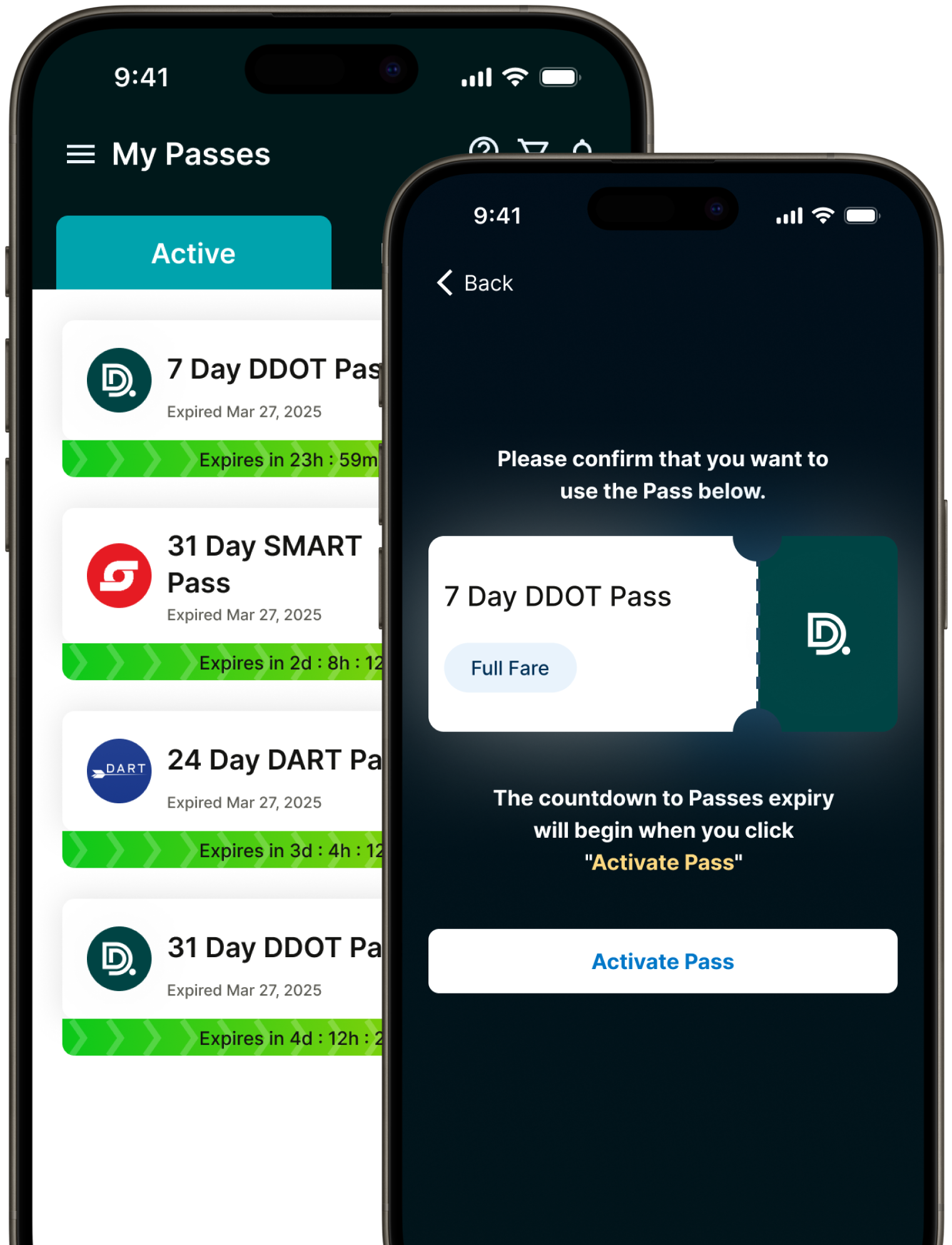
How you show your pass depends on your route
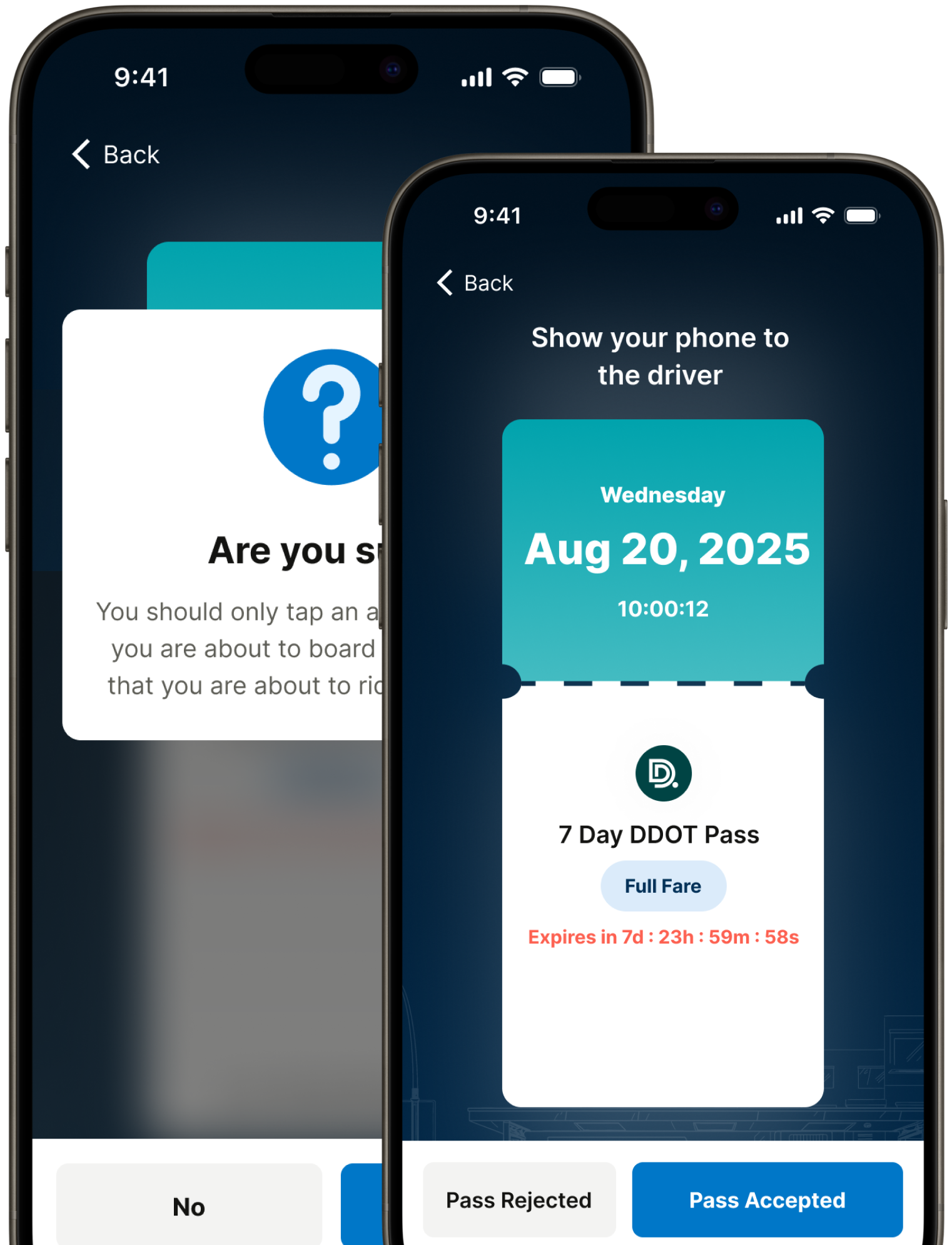
Open your live pass in the app before you reach the door. The whole screen becomes your ticket, in your operator's colour. What happens next depends on how your route checks passes.
- Most routes: hold up your phone. The driver checks that the colour is moving, that the clock matches theirs, and for a yellow frame if you have a reduced fare.
- Scan routes: the driver scans the barcode in the middle of your pass. It changes every 30 seconds, so show the live pass, not a screenshot — a screenshot soon stops scanning. It works without signal.
- Sticker routes: you scan the QR sticker near the door with the app. Keep your location on, because that confirms you're aboard. This works in the app only.
-
What are you riding?
If your pass covers more than one service, like a Regional pass, pick the one you're boarding before your ticket shows. That's how each operator gets paid for your ride. - After boarding, tap Driver let me on or Turned away so we know how it went.


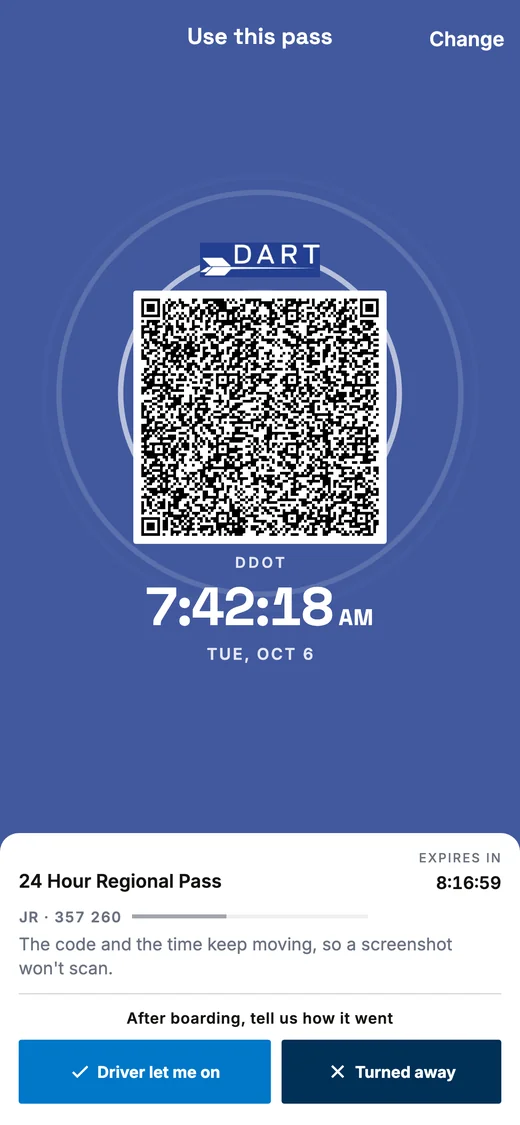
Apple Wallet and Google Wallet cards
A Wallet card is a shortcut to your pass, not your ticket. Tap the card to open your live pass in the app, then show that screen.
On scan routes, a Google Wallet card carries the same changing barcode, so the driver can scan it from the card. Where the driver checks by eye, always show the app.
Reduced fare
If you qualify for a reduced fare, apply on the web at staging.bhadala.us/reduced-fare. A reduced-fare pass has the yellow frame the driver looks for.
Want to know what the driver sees? Read how drivers check a pass, and which validation equipment each route uses.
Real-time pass status and notifications
Keep track of everything from one place. Bhadala Atlas shows your balances, active passes and expiry times, and sends notifications so nothing catches you off guard.
- Track balances in your Personal Wallet and every benefit your sponsors have set up.
- See expiry at a glance — know when a pass ends and how many are still active.
- Get notified about pass status and account activity in real time.
Tips for a smooth ride
Follow these simple tips so your Bhadala Atlas experience is seamless every time you board.
Keep your screen bright
Set your phone's brightness to maximum so your pass is easy to see when you board the bus.
Have your pass ready
Open your active pass before boarding to speed up verification and keep the line moving.
Keep the app updated
Update Bhadala Atlas regularly to get new features and keep everything running smoothly.
Ready to start your journey?
Download Bhadala Atlas today and experience seamless public transit across Metro Detroit.
Download the app