Simple, Secure, Smart: Validating Atlas Passes
Train to validate Bhadala Atlas passes at the farebox — a quick, reliable way to confirm every rider is showing a genuine, active digital pass on their phone.
One Wallet for Every Metro Detroit Ride
Bhadala Atlas is a platform built to streamline fare payment and collection for commuters across Southeast Michigan.
Riders Buy Passes Before They Board
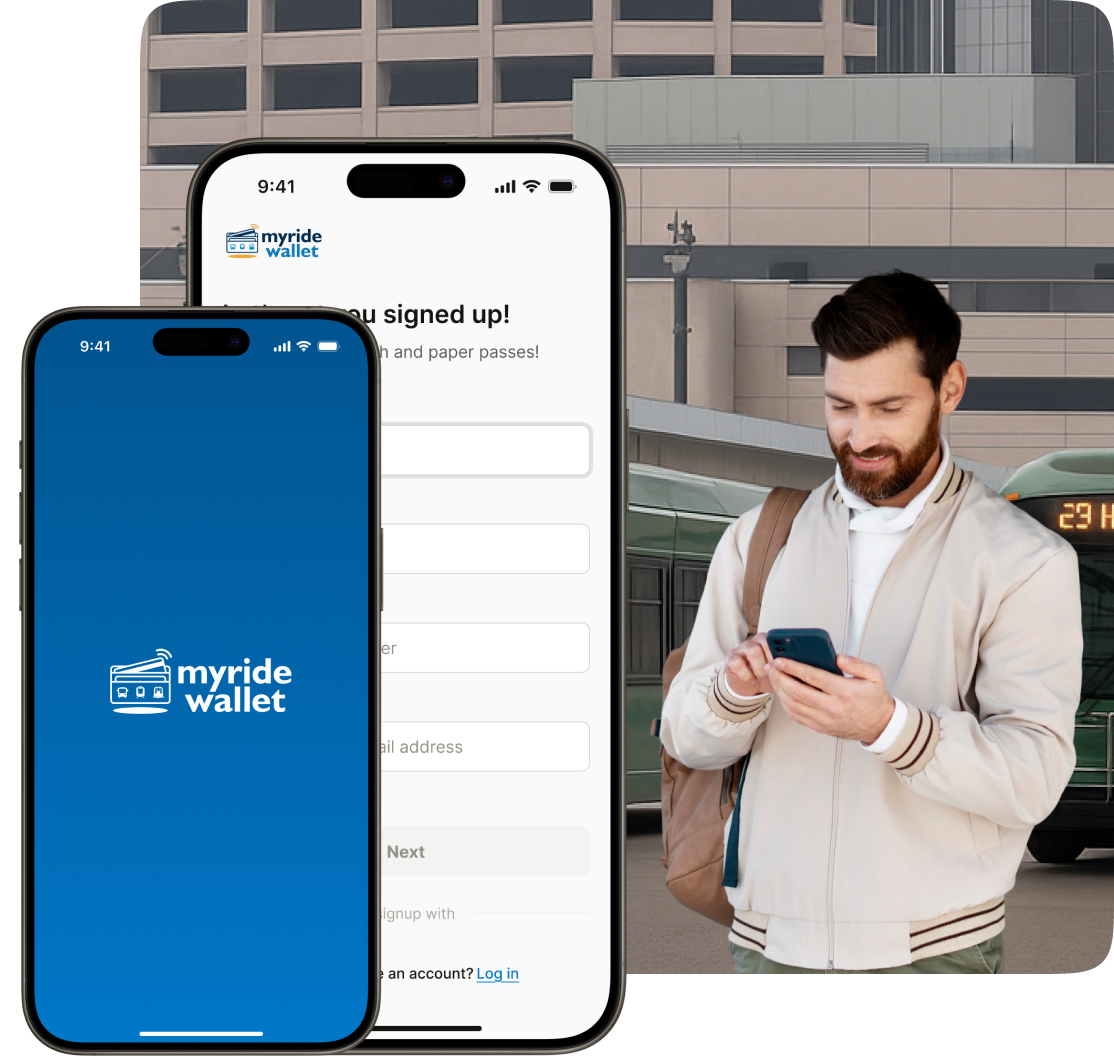
Riders download, sign up, and log in to the Bhadala Atlas app to access and purchase the passes available for their agency — so by the time they reach you, the fare is already paid.
Validate Every Pass Riders Present
As an operator, please validate purchased passes on the Bhadala Atlas app that riders present to you before they board.
- Verify each rider’s digital pass
- Confirm it’s from the official Bhadala Atlas app
- Ensure the pass is currently active and valid
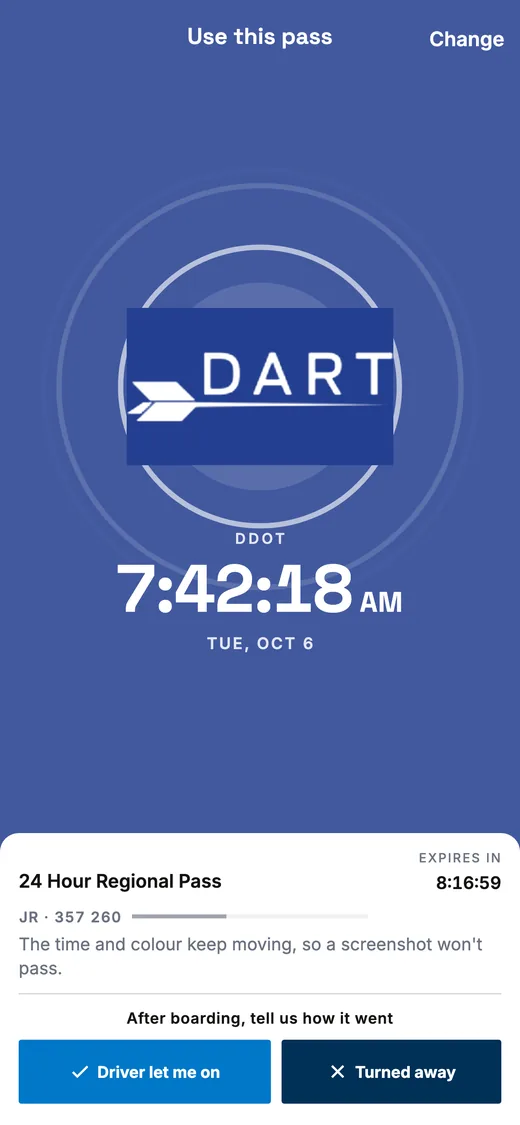

Riders may show you a DDOT, SMART or Regional pass. Regional passes carry the DART logo and are good on both DDOT and SMART buses.
Checking a Bhadala Atlas Pass



When a rider shows you their pass, the whole phone screen becomes the ticket. Make these four checks, in this order.
-

The whole screen is the operator’s colour, and it moves

The rider’s phone fills with DDOT green, with the DDOT logoSMART red, with the SMART logoDart blue, with the DART logo and, under it, the name of the agency the rider picked — yours. Circles keep leaving the logo, and the whole screen gently brightens and dims. A screen that sits still is a screenshot.
-
The big clock matches your own clock
It shows the time to the second, with today’s date under it. Check it against your own clock or the farebox. A clock that is wrong or has stopped is not a live pass.
-
Yellow means a reduced fare
A reduced-fare pass has a yellow frame round the whole screen and a yellow REDUCED FARE band at the top. You can see the frame from arm’s length, before you can read anything. No yellow means a full fare.
-
On routes where you scan
The barcode sits in the middle of the coloured screen, and the colour, circles and clock keep moving round it. Scan it as usual.
The barcode changes every 30 seconds. When your scanner has signal, it turns away a barcode more than about a minute old, so a screenshot soon stops scanning.
With no signal, the scan is saved on your phone and checked later, not at the door. Make the first three checks as usual.
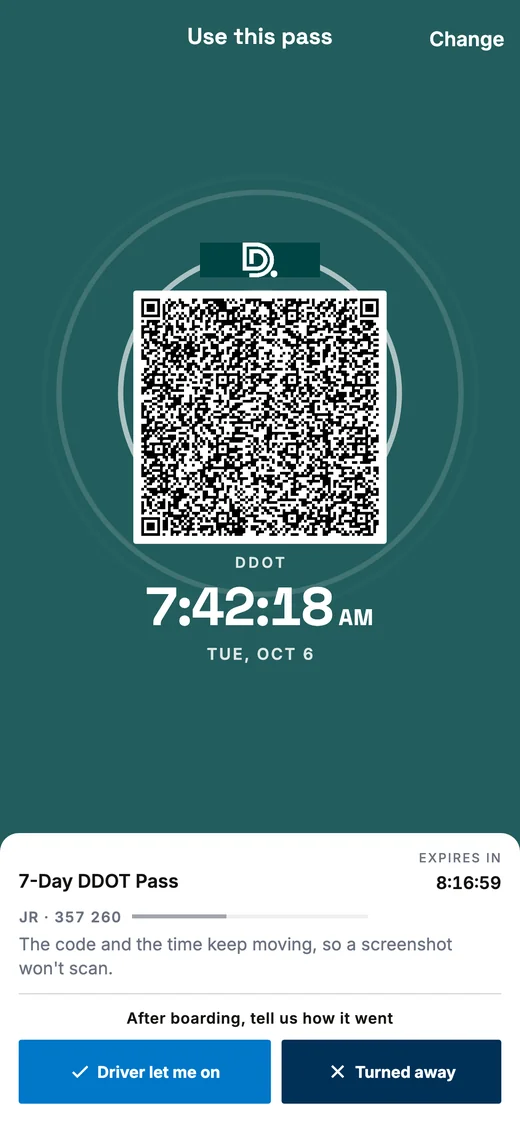
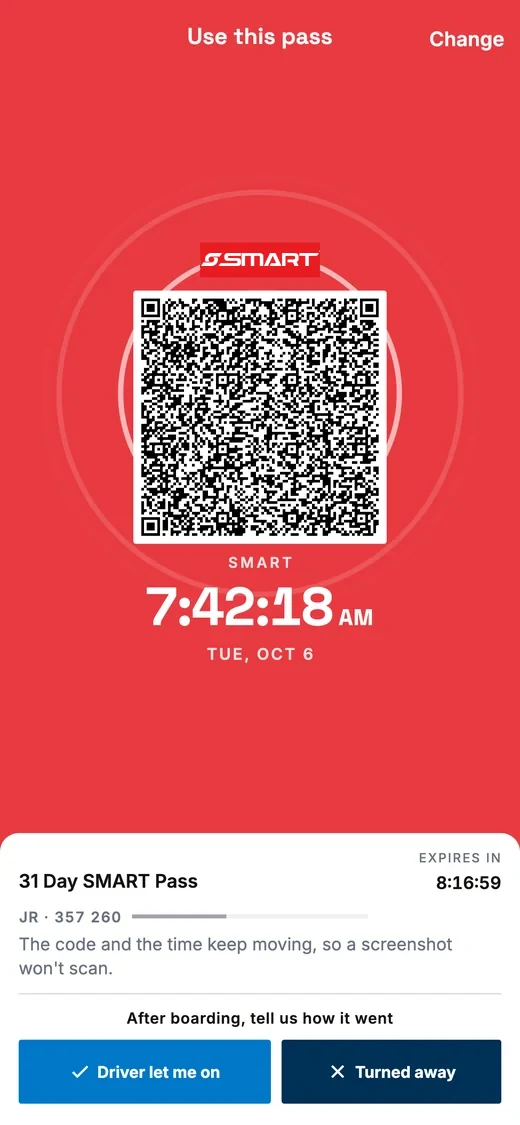
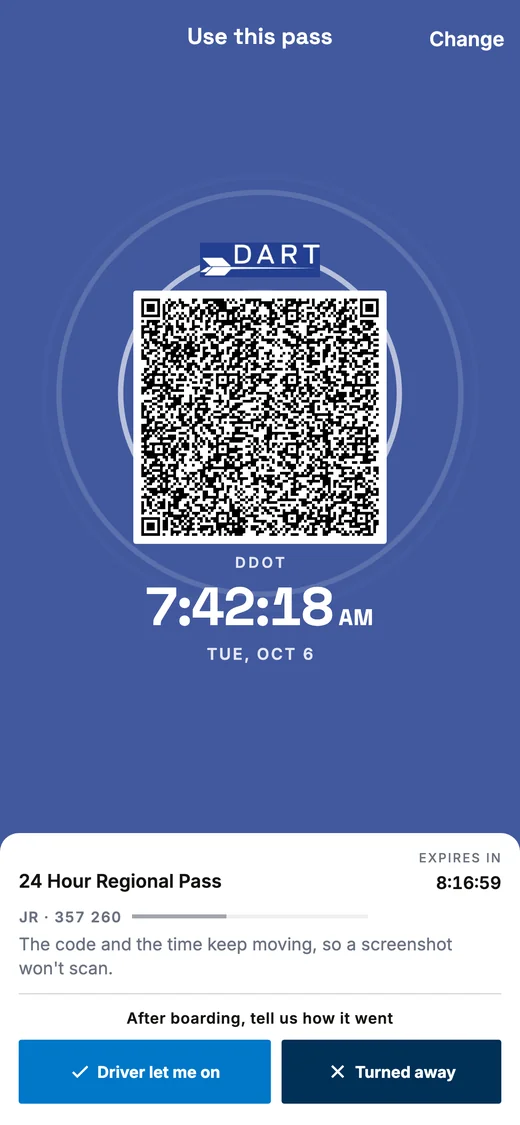
The white panel at the bottom shows the pass name and how long it has left.
The line with two letters and a six-digit code is for inspectors and scanners. You don’t need to check it.
The two buttons, Driver let me on and Turned away, are for the rider to tap after boarding. You don’t need to touch their phone.
Scanning with Driver mode
On routes where your operator scans, you check passes with Driver mode in the Bhadala Atlas app. It’s in the app only; there’s no web version.
-
Get access
Driver access is by invitation from your operator. Once you’re invited, Driver mode appears in the app’s menu.
If it says
You are not set up as a driver
, ask your operator to invite you, then come back. -
Start a shift
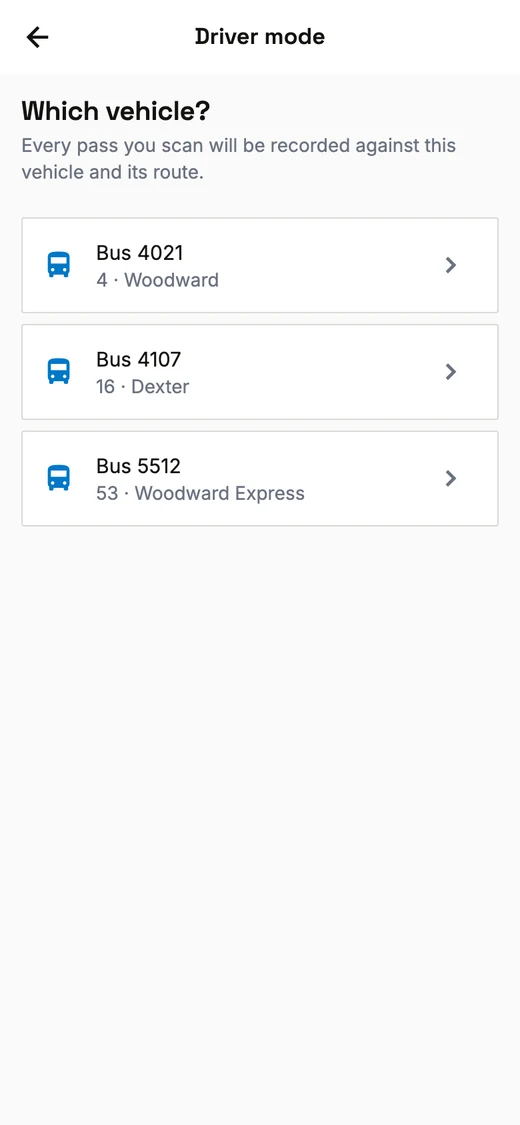
Driver mode asks Which vehicle? Tap the one you’re driving. Every pass you scan is recorded against that vehicle and its route.
Then tap Start scanning.
-
Scan each rider
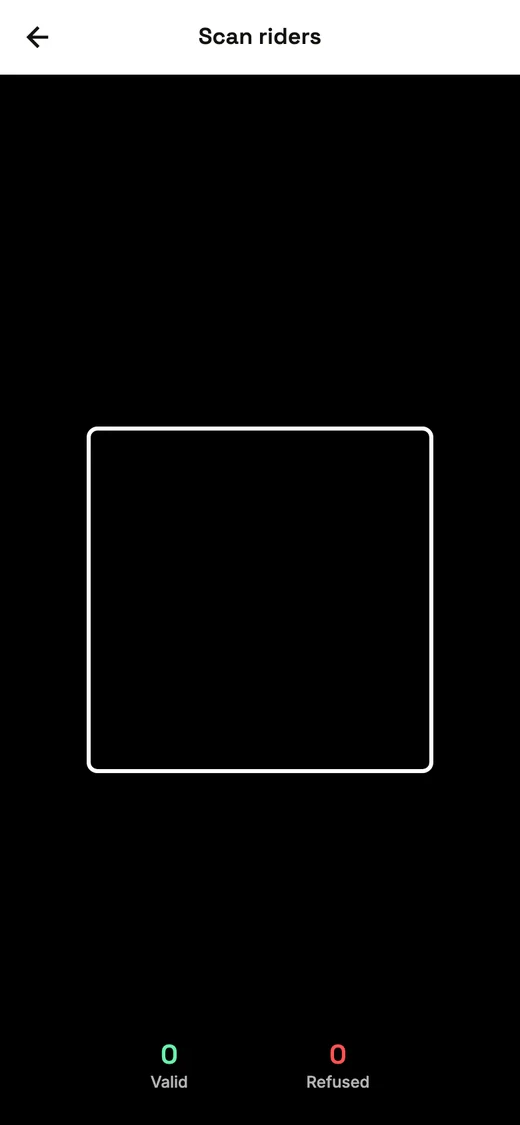
Hold the rider’s pass in the square. The camera keeps scanning, so you don’t press anything between riders.
Each pass shows a big green Valid or red Not valid with the reason, plus a sound and a vibration. The two feel different, so you can tell them apart without looking. The counters at the bottom show how many were Valid and Refused.
The barcode changes every 30 seconds. With signal, a barcode more than about a minute old is refused, so a photo or screenshot soon stops scanning.
Scanning 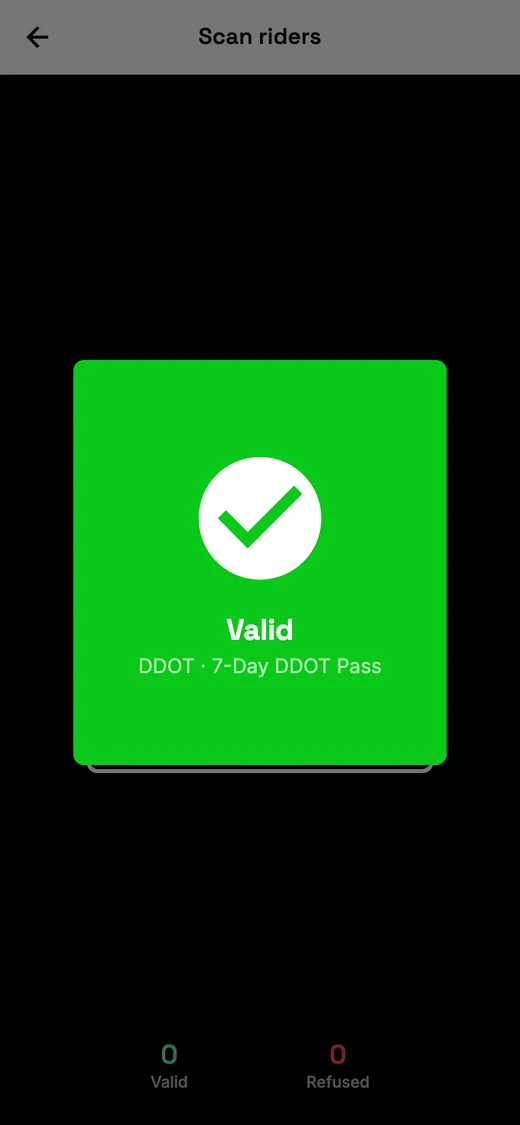
Valid 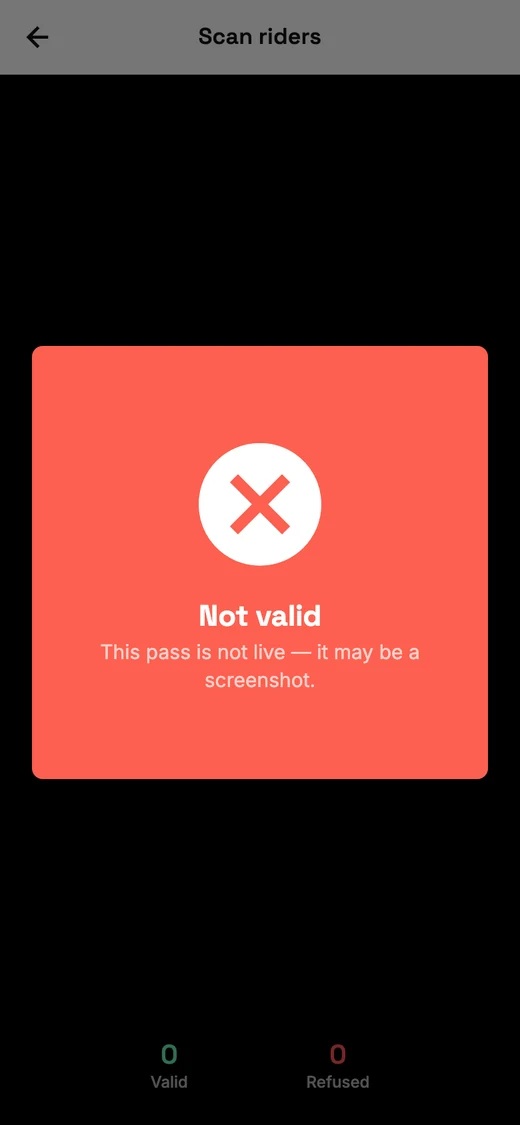
Not valid -
With no signal
Driver mode keeps working. Every scan you make with no signal shows Valid and Saved to send later. That scan has not been checked yet. It’s saved on your phone and checked when it’s sent, so make the three visual checks as well.
The To send counter shows how many are saved. Back in signal, tap Send N waiting scan(s).
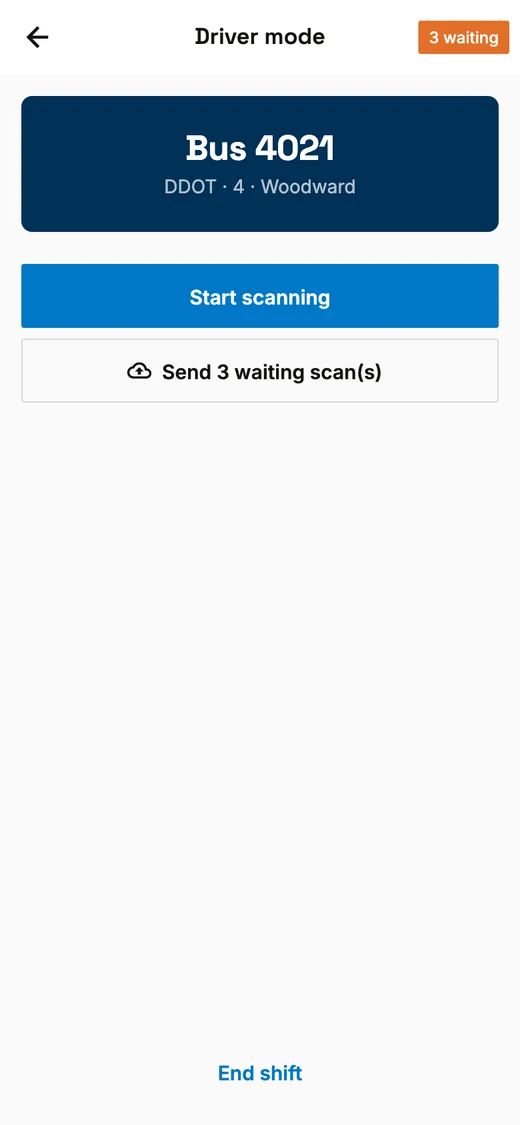
-
End your shift
Send any waiting scans before you tap End shift. End shift tries to send them too. Any it can’t send stay on your phone: next time you’re signed on with signal, tap Send N waiting scan(s). They aren’t sent by themselves.
What a refusal means
These are the exact messages Driver mode shows. What happens to a rider after a refusal is up to your operator’s fare policy.
| Message | What it means | What to do |
|---|---|---|
This pass is not live — it may be a screenshot. |
The barcode is more than about a minute old. It’s a screenshot or a photo, or the clock on the rider’s phone is wrong. | Ask the rider to open the pass in the app and scan again. |
This pass has expired. This pass has not been activated. |
The pass is real, but it can’t be used right now. | The rider can start the pass, or buy a new one in the app, and scan again. |
This pass is not valid on that service. |
The pass doesn’t cover your operator. | Tell the rider. After that, follow your operator’s fare policy. |
This pass cannot be validated that way. |
This pass can’t be scanned on your service. | Check it by eye instead, if your operator allows that. |
This pass could not be verified. |
The barcode isn’t a genuine Bhadala Atlas pass. | Treat it as not valid. |
You are not signed on as a driver for that operator. That vehicle is not in service. |
Your Driver mode setup. These appear when you pick a vehicle. | Contact your operator. |
Sign on to a vehicle before scanning. |
Your shift has ended, for example because you signed on with another phone. | Go back to Driver mode and pick your vehicle again. |
That scan is dated outside any shift you have driven. |
Only for scans saved with no signal, when they’re sent. The app tells you how many it sent, not this message. | Contact your operator if they ask about a missing ride. |
Apple Wallet and Google Wallet cards are not proof of a pass. Ask the rider to show the live pass in the app.
On a scan route, a Google Wallet card carries the same changing barcode, so it scans like the app: the scan is the check, not the card. An Apple Wallet card has no barcode. A reduced-fare card only says what the rider qualifies for: the proof is the yellow frame on the live pass.
Which methods can your operator use? See validation equipment we support. Checking by eye stays valid wherever your operator allows it.